2: Azure Functions : What we can do? | Use of Azure Function | Azure fun...
Azure apps/resources locks to prevent changes
Azure apps/resources locks to prevent changes
Issue:
· How can I lock my
azure apps so that others can’t update/modify it?
· Read only azure
resources are possible?
· I want other member
in my team should not be able to update my resources.
· Prevent accidental
changes.
Solution:
To be very frank, this is a valid
ask from anyone. If I have a big team size but I want them to provide them only
read-only access or they should not be able to delete anything.
The good news is, you don’t have
to do much for this. Azure provides you this feature which just have to be
enabled by you and this feature name is “LOCKS”.
You can check in below screen shot
which is for Azure app service, but you can use it for any other azure
resources,
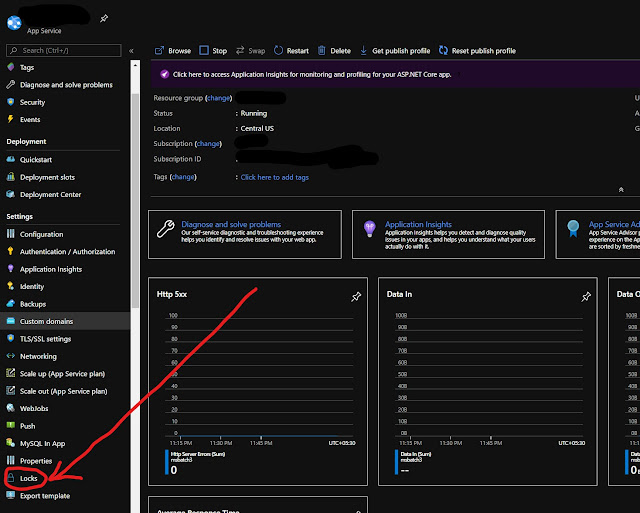
Types of Lock
- ReadOnly
- CanNotDelete
ReadOnly lock means nobody can update or delete except then authorized users. You can relate this lock with Reader RBAC role.
CanNotDelete as names says you can not delete the resource but modify and read
only.
Important Points
· Locks can be applied at Subscription, resource group or at
resource level.
· If you apply locks at subscription level, then all resource within
that will have same lock inherited
· If you don’t want to apply lock at subscription level, then you can
apply at individual resource also.
· In a nutshell, parent resource lock is being inherited by child
resources also.
· Locks can be applied through other mechanism also like,
o
PowerShell
§ New-AzResourceLock
o
CLI
§ az lock
o
Rest API
o
ARM Template
How to apply lock from portal
Applying locks from the porta is
the easiest approach.
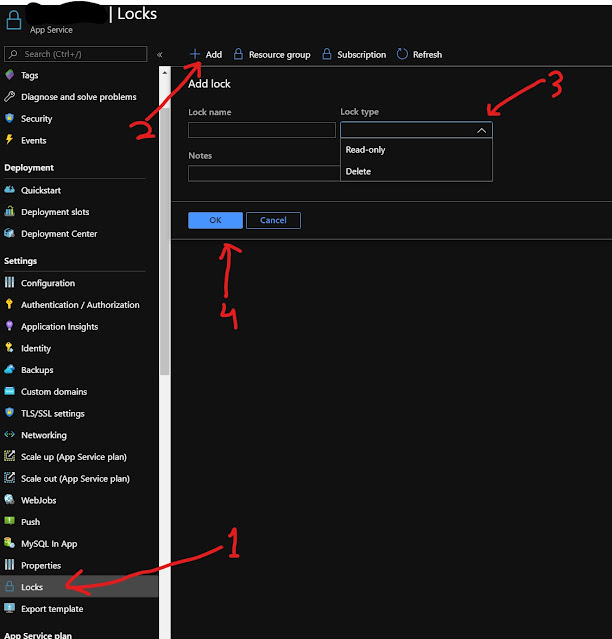
You can refer below screen.
Step 1: Click on locks
Step 2: Click on Add
Step 3: Select Lock Type
Step 4: Provide lock name
Step 5: Provide some description
in notes section like purpose of this lock
Step 6: Click on OK
And You are done.
 |
Hope this helps.
Please refer below URL for more
details about Locks,
https://docs.microsoft.com/en-us/azure/azure-resource-manager/management/lock-resources
Azure App Service FTP _ Azure app Service create/reset FTP user level credential through PowerShell
Azure app Service create/reset FTP user level credential through PowerShell
Issue:
· How can I
create FTP deployment credentials?
· How to reset
User credentials for azure app service?
· I want to use
PowerShell for this.
· Can I get
publish profile details through PowerShell?
Solution:
We all are
aware that Azure app service content can be accessed through FTP. This is one of the most easy and popular way
to deploy your content to Azure app service.
When you create
an app service or web app, Azure add an FTP hostname with that app. You can get
the FTP hostname information in the “Overview” blade of your app
service.

Here it is very
important to understand that Azure app service support 2 types of credentials,
·
User Level credentials
·
App Level credentials
User
level
credentials are for entire Azure account which can be used to deploy to any web
app for the subscription,
while
App Level credentials are particular web app specific and can't
be used with any other web app. App Level credentials are generate automatically
at app creation. Users can’t control this manually.
Now
question is, where can I check these credentials and answer is simple,
Go
to “deployment center” blade and click on FTP.

Once
you click on “dashboard” button, a new pop up window will appear with App and
user level credentials.

You
can see that App level credentials can only be reset but
you don’t have control to define the username or password here.
You
can control user level credentials. Here we have one catch; you
can have only one FTP user level credential. You can’t have multiple FTP
user level credentials.
Now, If you want to create/reset user level or app level credentials
using PowerShell then answer is Yes it is possible.
Ø Create
or Reset User level credentials,
$properties = @{ publishingUserName = “<your user
name>”;
publishingPassword = “<your password>”
}
Set-AzureRmResource -Properties $ properties -ResourceId
/providers/Microsoft.Web/publishingUsers/web -ApiVersion 2015-08-01 -Force
# -ApiVersion : Specifies
the version of the resource provider API to use. If you do not specify a
version, this cmdlet uses the latest available version.
|
Ø You
can get the publish profile user details,
Invoke-AzureRmResourceAction -ResourceGroupName <resource group name> -ResourceType Microsoft.Web/sites/config -ResourceName <your site name>/publishingcredentials -Action list -ApiVersion 2015-08-01 -Force
# -ApiVersion : Specifies the version of the resource provider
API to use. If you do not specify a version, this cmdlet uses the latest
available version.
#You can find credentials details in the properties
|
I hope this helps. Please comment if you have any query
Other useful FTP links,
Other useful references,
Issue: Azure function is throwing one of the following exceptions
· Unable to
retrieve Functions Keys
· We are not
able to retrieve the keys for function
· The
function runtime is unable to start.
· Function
host is not running.
· Internal
Server error.
· Service
Unavailable.
|
Issue: Azure Functions: The Consumption pricing tier is not allowed in
this resource group
|
Issue: Disable Azure functions
|
Everything about Azure app service FTP
Azure App Service FTP Troubleshooting
Everything about Azure app service
FTP
Issue:
· I am not able to
connect to azure app service through FTP.
· How can I
connect to FTP in azure app service?
· My FTP username/password
is not working.
· Which port I
should use for FTP?
Solution:
We all are
aware that Azure app service content can be accessed through FTP. This is one of the easiest and popular ways
to deploy your content to the Azure app service.
When you create
an app service or web app, Azure adds an FTP hostname with that app. You can get
the FTP hostname information in the “Overview” blade of your app
service.

Here it is very
important to understand that Azure app service support 2 types of credentials,
·
User Level credentials
·
App Level credentials
User
level
credentials are for entire Azure account which can be used to deploy to any web
app for the subscription,
while
App Level credentials are particular web app specific and can't
be used with any other web app. App Level credentials are generated automatically
at app creation. Users can’t control this manually.
Now
question is, where can I check these credentials and answer is simple,
Go
to “deployment center” blade and click on FTP.

Once
you click on “dashboard” button, a new pop up window will appear with App and
user level credentials.

You
can see that App level credentials can only be reset but you
don’t have control to define the username or password here.
You
can control user level credentials. Here we have one catch; you
can have only one FTP user level credential. You can’t have multiple FTP
user level credentials.
Please
keep in mind a few important points,
· If someone in
your org changes the password for that username without updating you then you
will not be able to access it.
· If you have
shared this credential with 3rd parties for some purpose, then you
should update them otherwise they will not be access it.
· Most important: If someone
create a new FTP user level credential then you will not be able to access the
previous/existing user level credential. Many people face this issue and then
regret that they are not able to access previous credentials
· As user level credentials
is unique for the entire azure account hence if you get message that “Username
has already been taken by someone else”, then try using some other user name.
Troubleshooting
If you face FTP connectivity issue
please verify following points,
·
Verify
if you are using the correct FTP hostname.
·
Verify
your username and password are correct.
·
If
user level credential is not working, then try with App Level credentials.
·
If
App level credential is not working, then try resetting it. This action is needed when someone else reset the App level credentials
without your information. Resetting app level credential will generate a new one
which should work.
·
If
both App level and user level credentials are not working, then try resetting
the password of user level credentials and check with that.
·
Try
creating a new FTP username if still issue persists.
All
above steps are pertaining to credentials but remember, there might be some
issue from the networking side. Hence validate following,
· App service FTP
uses port 21 for control connection and port 989, 10001-10300
for data connection. Please verify these ports are open.
· You can take
help of your local IT team if these ports are blocked.
· Verify if any firewall
or network restriction is preventing the connectivity between FTP client
and Azure.
· Try with some other
network e.g. your mobile network. This will isolate your network issue.
· Try using some other FTP clients.
o FTP Clients examples,
§ Filezilla
§ WinSCP
99%
chances are that following these steps should solve your issue and if your
issue persists then you can use some other deployment methods like,
· Visual Studio
· KUDU
· DevOps
· GitHub
· PowerShell
· ARM
· CLI etc.
KUDU
is the best alternative of FTP where you can simply drag and drop your files.
I
hope this should solve your any FTP related issue but if your issue continues
then reach out to azure app service support team.
Other useful references,
Issue: Azure function is throwing
one of the following exceptions
|
Issue: Azure Functions: The
Consumption pricing tier is not allowed in this resource group
|
Issue: Disable Azure functions
|
Subscribe to:
Posts (Atom)
-
Change Function app hosting plan How to Migrate from Consumption Plan to App Service Plan How to Migrate from Consumption Plan to P...
-
 Azure | Unable to edit/delete files through KUDU site ( 409 conflict: could not write to local resource) Scenarios Edit Error ...
 -
409 Conflict: Could not write to local resource 'D:\home\site\wwwroot\ due to error 'Could not find file 'D:\home\site\wwwr...
-
 Troubleshooting Azure Functions HTTP 404 Errors: How to Fix Them Issue : · Why Azure functions http trigger returning “HTTP E...
 -
 Azure Functions Runtime is unreachable. Click here for details on storage configuration. Issue : · Azure Functions Runtime i...