Showing posts with label Function App. Show all posts

Azure functions "XXX was disallowed by policy"


Azure functions "XXX was disallowed by policy"

Azure Functions is a serverless computing platform that allows developers to run small pieces of code, called functions, in the cloud. These functions can be triggered by events such as HTTP requests or database updates, and can be written in a variety of programming languages. While Azure Functions is a powerful tool for building and deploying applications, it can sometimes be difficult to troubleshoot errors that occur during development or deployment. 

One common error that developers encounter when working with Azure Functions is the "XXX was disallowed by policy" error message. This error message typically indicates that an action or operation performed by the function has been blocked by Azure policy. In this blog post, we will explore some common causes of this error message and provide some tips for troubleshooting and resolving the issue. 

  • Check Azure Policy Settings

The first step in troubleshooting the "XXX was disallowed by policy" error is to check the Azure policy settings for your subscription. Azure policy is a service that allows you to create and enforce rules for resources in your subscription. These rules can help you ensure compliance with regulations and industry standards, as well as improve security and manage costs.

To check your Azure policy settings, go to the Azure portal and navigate to the Policies tab. Here, you can view and manage your policy definitions, assignments, and exemptions. Look for any policies that may be blocking the operation or action performed by your function, and adjust the policy settings as needed.

  • Enable Diagnostic Logging

Enabling diagnostic logging can help you identify the cause of the "XXX was disallowed by policy" error message. Diagnostic logs can provide detailed information about the operation or action that triggered the error, as well as any policy violations that occurred.

To enable diagnostic logging, go to the Monitoring tab in the Azure portal and select Diagnostics settings. Here, you can configure diagnostic settings for your function app, including which logs to collect and where to store them.

  • Contact Azure Support

If you have tried all of the above troubleshooting steps and are still unable to resolve the "XXX was disallowed by policy" error message, contact Azure support for assistance. Azure support can help you diagnose and troubleshoot the issue, and may be able to provide additional guidance on how to resolve the issue.


In conclusion, the "XXX was disallowed by policy" error message can be a frustrating issue to encounter when working with Azure Functions. 

By following the troubleshooting steps outlined in this blog post, you can quickly identify and resolve the issue, allowing you to get back to developing and deploying your applications.


Azure functions coding best practices with examples

Azure functions coding best practices with examples

Azure Functions is a serverless compute service that enables developers to build and deploy event-driven, serverless applications at scale. It provides a fully managed, platform-as-a-service (PaaS) environment for building and running microservices-based applications. To help developers build high-quality and scalable Azure Functions, here are some coding best practices to follow:

  • Keep Functions Small and Focused

Each Azure Function should do one specific task and nothing else. Avoid creating a large function that performs multiple tasks, as it can make your code difficult to read, test, and maintain. Instead, break your code into smaller functions that perform individual tasks, and compose them to create more complex workflows.

For example, consider an e-commerce application that sends a confirmation email when a customer places an order. Instead of creating a single function that retrieves order details, composes an email, and sends it, break it into three smaller functions: one to retrieve order details, one to compose an email, and one to send the email.

  • Use Dependency Injection

Azure Functions supports dependency injection (DI), which is a design pattern that enables you to decouple your code by injecting dependencies into functions. It makes your code more modular, testable, and easier to maintain. Use DI to inject dependencies such as database connections, services, and configurations.

For example, let's say you have a function that needs to access a database to retrieve data. Instead of creating a new database connection every time the function is called, use DI to inject the database connection as a dependency.

  • Use Logging and Tracing

Logging and tracing are essential for troubleshooting and monitoring your Azure Functions. Use a logging framework such as Azure Application Insights to log events and exceptions. Use tracing to track the execution path of your functions.

For example, consider a function that retrieves data from a database. Use tracing to track the execution path of the function, such as when it connects to the database, retrieves data, and returns the result. Use logging to record any exceptions that occur during the execution of the function.

  • Use Environment Variables

Use environment variables to store important information such as connection strings, API keys, and passwords. It enables you to change the configuration of your application without modifying your code.

For example, let's say you have a function that connects to a database. Instead of hard-coding the connection string in your code, use an environment variable to store it.

Note: You can store sensitive information in key-vault which is more secure and use in App Setting.

  • Use Async/Await

Azure Functions supports asynchronous programming, which enables you to write code that doesn't block the execution of the function. Use the async/await keywords to write asynchronous code.

For example, consider a function that retrieves data from a database. Use async/await to perform the database query asynchronously, so the function can continue to execute while the query is running.

  • Use Continuous Integration and Deployment

Use continuous integration and deployment (CI/CD) to automate the deployment of your Azure Functions. Use a CI/CD pipeline to build, test, and deploy your code to different environments.

For example, let's say you have a development, staging, and production environment. Use a CI/CD pipeline to build and test your code in the development environment, then deploy it to the staging environment for further testing, and finally deploy it to the production environment when it's ready.

  • Use Appropriate Trigger Types

Choose the appropriate trigger type for your function based on the type of event you want to process. Azure Functions supports various trigger types, including HTTP triggers, blob storage triggers, Cosmos DB triggers, and more.

For example, if you want to process an HTTP request, use an HTTP trigger. If you want to process a file uploaded to a storage account, use a blob storage trigger.

  • Use Appropriate Binding Types

Choose the appropriate binding type for your function based on the type of data you want to access. Azure Functions supports various binding types, including input bindings, output bindings, and trigger bindings.

For example, if you want to read data from a storage account, use an input binding. If you want to write data to a database, use an output binding.

  • Use Durable Functions for Long-Running Workflows

Use Durable Functions to create long-running workflows that can span multiple function invocations. Durable Functions provides an extension to Azure Functions that enables you to write stateful workflows in a serverless environment.

For example, consider a workflow that involves multiple steps, such as processing an order, sending an email notification, and updating a database. Use Durable Functions to create a stateful workflow that can track the progress of each step and handle failures gracefully.

  • Use Azure App Configuration 

Use Azure app configuration to manage the commonalty used App Setting by multiple function app . 

Use environment-specific configuration like Dev/Test/Prod etc.

For example, consider multiple function app that needs to access same database. Use a App configuration to store the database connection string, and use the appropriate configuration value relevant Azure functions such that if you need to update connection string the updating at one place will reflect in all function app.

  • Use Unit Testing

Use unit testing to test the individual functions of your Azure Functions application. Write unit tests to ensure that each function behaves correctly and handles inputs and outputs as expected.

For example, write unit tests for each function to ensure that it returns the expected output given a particular input. Use a testing framework such as NUnit, xUnit, or MSTest to write and run unit tests.


These are some best practices for Azure Functions coding that can help you write high-quality, scalable, and maintainable applications.

Azure functions host.json and function.json

 Azure functions host.json and function.json


Azure Functions is a serverless compute service that allows you to run code on-demand without the need to manage infrastructure. To configure the behavior of Azure Functions, you can use the host.json file. In this blog, we'll discuss what host.json is, how to use it, and its important features. 

What is host.json?

host.json is a configuration file for the Azure Functions host that defines the runtime behavior of your functions. It includes various configuration settings such as the function timeout, logging levels, default values for environment variables, and more.

Using host.json

To use host.json, you need to add it to the root of your function app directory. The file can contain various configuration settings that apply to all functions within the app, or it can contain settings specific to a particular function. If you have settings that apply to only one function, you can create a separate host.json file in the function's directory. 

host.json Settings

Here are some of the important settings that you can include in the host.json file: 

  • version - Defines the version of the Azure Functions runtime that the function app should use.
  • extensions - Allows you to enable or disable specific function extensions, such as the Azure Cosmos DB or Azure Event Hub extensions.
  • logging - Allows you to configure the logging behavior of the function app, including the log level and the log destination.
  • http - Allows you to configure HTTP-related settings, such as the default route prefix, the maximum request length, and more.
  • durableTask - Allows you to configure settings for the Azure Durable Functions extension, such as the task hub name and the storage provider settings.
  • functionTimeout - Defines the maximum time that a function can run before being terminated.
  • environmentVariables - Allows you to define default values for environment variables that your functions use.

Conclusion

In conclusion, host.json is an important configuration file for Azure Functions that allows you to customize the behavior of your functions. It includes various settings that can be used to control the runtime behavior of your functions, such as the function timeout, logging behavior, and more. By understanding the different settings that you can include in host.json, you can configure your function app to meet your specific needs and optimize its performance.

What is function.json?

Function.json is a configuration file for individual functions in an Azure Function app that defines the input and output bindings, function trigger, and other function-specific settings. It provides a way to define the function signature, input and output types, and the way the function is triggered.

Using function.json

To use function.json, you need to add it to the function directory. The file contains various configuration settings that apply to the specific function. This file is used to define the input and output bindings, function trigger, and other function-specific settings.

function.json Settings

Here are some of the important settings that you can include in the function.json file: 

  • bindings - Defines the input and output bindings for the function. This includes the type of binding, direction, name, and other specific properties.
  • trigger - Defines the trigger for the function, such as an HTTP request, timer, or message queue.
  • scriptFile - Defines the file that contains the function code.
  • entryPoint - Defines the function entry point within the script file.
  • disabled - Allows you to disable a specific function if it's no longer needed.
  • name - The name of the function.
  • direction - The direction of the binding, either "in" or "out". 

Conclusion

In conclusion, function.json is an important configuration file for individual functions in an Azure Function app that allows you to define the input and output bindings, function trigger, and other function-specific settings. By understanding the different settings that you can include in function.json, you can configure your function app to meet your specific needs and optimize its performance.


Azure functions PowerShell tips and tricks

Azure functions PowerShell tips and tricks 


Azure Functions is a popular serverless computing platform that allows developers to write and run event-driven functions in the cloud. 

The Azure Functions PowerShell module provides a way to interact with and manage Azure Functions using PowerShell. In this blog, we will explore some tips and tricks to help you get the most out of the Azure Functions PowerShell module.

1. Install the Azure Functions PowerShell Module

To install the Azure Functions PowerShell module, open PowerShell and run the following command:

Install-Module -Name Az.Functions

This command will install the latest version of the Azure Functions PowerShell module from the PowerShell Gallery.

2. Connect to Your Azure Subscription
To connect to your Azure subscription using the Azure Functions PowerShell module, run the following command:

Connect-AzAccount

This command will prompt you to enter your Azure credentials and connect to your subscription.

3. Create a Function App
To create a new Function App using PowerShell, run the following command:

New-AzFunctionApp -ResourceGroupName <resource-group-name> -Name <function-app-name> -Location <location>

This command will create a new Function App in the specified resource group and location.

4. Create a New Function
To create a new function in your Function App, run the following command:

New-AzFunction -ResourceGroupName <resource-group-name> -Name <function-name> -FunctionAppName <function-app-name> -File <path-to-function-file> -Trigger <trigger-type>

This command will create a new function in your Function App with the specified trigger type and code file.

5. Run the Function Locally
To run the function locally using PowerShell, run the following command:

func start

This command will start a local version of the Azure Functions runtime and allow you to test your function.

6. Debug the Function Locally
To debug the function locally using PowerShell, run the following command:

func host start --debug

This command will start the Azure Functions runtime in debug mode, which allows you to use a debugger to step through your code.

7. Deploy the Function to Azure
To deploy the function to Azure using PowerShell, run the following command:

Publish-AzFunctionApp -ResourceGroupName <resource-group-name> -Name <function-app-name> -ArchivePath <path-to-function-zip-file>

This command will package and deploy the function to the specified Function App.

8. Manage Function App Settings
To manage your Function App settings using PowerShell, run the following command:

Get-AzFunctionApp -Name <function-app-name> -ResourceGroupName <resource-group-name> | Set-AzFunctionAppSetting -Name <setting-name> -Value <setting-value>

This command will get the specified Function App and update the specified setting with the specified value.

Conclusion
The Azure Functions PowerShell module provides developers with a powerful way to interact with and manage Azure Functions using PowerShell. By using these tips and tricks, you can get the most out of the Azure Functions PowerShell module and streamline your development workflow. Whether you're a seasoned PowerShell user or just getting started with Azure Functions, the PowerShell module is a valuable tool that can help you build and deploy serverless applications with ease.

C# code to start stop azure functions


C# code to start stop azure functions

Azure Functions is a serverless compute service that allows you to run code on-demand without worrying about infrastructure management. With Azure Functions, you can run small pieces of code called "functions" in the cloud. These functions can be triggered by events like changes to data in Azure Storage or incoming HTTP requests.

 In this article, we will learn how to start and stop Azure Functions using C# code. We will use the Azure Management Libraries for .NET to interact with the Azure Functions Management API.

Prerequisites

To follow this article, you will need the following:

  • An Azure account with an active subscription
  • Visual Studio 2019 or later installed on your machine
  • Azure Management Libraries for .NET installed

Step 1: Create an Azure Functions App

First, let's create an Azure Functions App in the Azure Portal. This app will serve as the target for our start and stop functions. 

  1. Go to the Azure Portal and sign in.
  2. Click on the "Create a resource" button and search for "Function App".
  3. Click on "Function App" and then click on the "Create" button.
  4. Fill out the required information, such as subscription, resource group, and app name.
  5. Select the runtime stack and operating system for your functions app.
  6. Choose the hosting plan and storage account that you want to use.
  7. Click on the "Create" button to create the Azure Functions App.

Step 2: Install the Azure Management Libraries for .NET

Next, let's install the Azure Management Libraries for .NET. This will allow us to use the Azure Functions Management API to start and stop our functions.

 Open Visual Studio and create a new C# console application.

  1. Right-click on the project in the Solution Explorer and select "Manage NuGet Packages".
  2. Search for "Microsoft.Azure.Management.Fluent" and install the latest version.
  3. Search for "Microsoft.Azure.Management.AppService.Fluent" and install the latest version.

Step 3: Retrieve the Azure Functions App

Now, let's write the C# code to retrieve our Azure Functions App.

  1. Import the necessary namespaces at the top of your code file:

using Microsoft.Azure.Management.Fluent;

using Microsoft.Azure.Management.ResourceManager.Fluent;
using Microsoft.Azure.Management.ResourceManager.Fluent.Core;
using Microsoft.Azure.Management.AppService.Fluent;

      2. Add the following code to retrieve the Azure Functions App:

var credentials = SdkContext.AzureCredentialsFactory.FromFile("<path-to-your-credentials-file>");

var azure = Azure

    .Configure()

    .WithLogLevel(HttpLoggingDelegatingHandler.Level.Basic)

    .Authenticate(credentials)

    .WithDefaultSubscription();

var functionApp = azure.AppServices.FunctionApps.GetByResourceGroup("<resource-group-name>", "<function-app-name>");

 The first line of code creates an Azure credentials object using a credentials file. Make sure to replace "<path-to-your-credentials-file>" with the path to your credentials file. 

The next few lines of code configure the Azure Management Libraries for .NET and authenticate with the Azure account associated with your credentials file.

 The last line of code retrieves the Azure Functions App using the resource group name and function app name.

Step 4: Start and Stop Azure Functions

Finally, let's write the C# code to start and stop our Azure Functions.


  1. Add the following code to start the Azure Functions
         functionApp.Start();

      2. Add the following code to stop the Azure Functions:

         functionApp.Stop();

That's it! Now you can use this C# code to start and stop your Azure Functions as needed. Make sure to test your code thoroughly before deploying it to production.


This Azure function app is down for maintenance


This Azure function app is down for maintenance


Issue:

·       Host is offline?


Solution:

Sometime when you browse your Azure functions you see this message,

This Azure function app is down for maintenance

Mostly this issue happened after deployment.

The reason for this issue is, app_offline.htm file.

You can find this file inside WWWROOT folder of your KUDU site.

When you deploy your function app or app service, Azure create a temporary app_offline.htm file before starting the deployment. This happens to avoid file lock issue.

Once deployment is successful then KUDU automatically delete this file.

Your app appears offline during the deployment.

Sometimes due to some exception or issue app_offile.htm file is not deleted after deployment which ended up with this issue.

To resolve this issue, you can go to KUDU site-> WWWROOT folder and delete this file.

If you'd like to turn this behavior off, please add an SCM_CREATE_APP_OFFLINE App Setting to your app and set the value to 0.


Azure Functions No Access


Azure Functions No Access


Issue:

·       I am not able to see any function inside my azure functions.

·       I can see “No Access” message.


Solution:

Sometimes when you open your Azure Functions you see “No Access” message and not able to access any function inside your function app.

Azure Functions No Access


The most probable reason for this issue is your RBAC role assignment.

If you have reader role assigned in your function app or in that resource group, then you will not able to able to see anything which can be modified. The portal will display (No Access)


A user with “reader” role can view some setting in the function app portal but can’t update/modify anything.

To update/modify something you should have write access.

You can check with your admin or subscription owner who can assign you enough access.

Refer below URL for more details,


Azure App Service Blank page after Deployment


Site Under Construction error after Deployment


Issue:
  • After deployment when you try to access the function app/web app you get blank screen.
  • You can see only one message “Site Under Construction”.
  • You didn’t do anything for this and was not sure why this message was appearing.


Solution

I observed this message is set in <title> tag of html page which function app is responding when I call the URL.


Now to explain this issue in more details I would like to explain the concept of app_offline.htm file which is the part of your deployment process.
In an effort to make Kudu deployments avoid file locking issues, Kudu will now create a temporary app_offline.htm in the site's WWWROOT folder before starting the deployment. Kudu then takes care of deleting the file after deployment is complete.
The effect is that while deployment is happening, the app will be kept offline. In addition to avoiding file locking issues, this helps keep the site is a consistent state, by not serving any traffic while the contents of the site is only half-deployed.
Note: the file will only be created if an app_offline.htm file is not already present in the site's folder.
If you'd like to turn this behavior off, please add an SCM_CREATE_APP_OFFLINE App Setting to your app and set the value to 0. For more information about configurable settings, please check this page.

You can get more information on below URL,

To get the final confirmation of this I tried to access this file from app and got the same response.(please check the URL in below screen shot)


That mean App has app_offline.htm file available in WWWROOT folder which was showing when calling the function app.

Ideally this file should have been deleted when your deployment is successful but I observed some unsuccessful deployment and that files was not deleted.

To resolve this,
  • Delete the file and try again “or”
  • Redeploy your application and make sure it is successful.

Feel free to add/update anything if needed.

Function App | Unable to add function in Function App | Blank screen

Function App | Unable to add function in Function App | Blank screen


Issue:
  • Sometimes you are not able to create a new function under your existing function app.
  • Earlier You were able to add new function but now you are not able to add.
  • You are able to see only a blank screen.


Analysis :
When You report these types of issue, Please collect the network trace immediately.

Please follow below steps to collect the network traces,
•    Hit F12 on your browser
•    Refresh browser (F5) - This will clear session caches
•    Reproduce the issue.
•    Export network trace as HAR file (Save all as HAR on Chrome/Edge/IE)


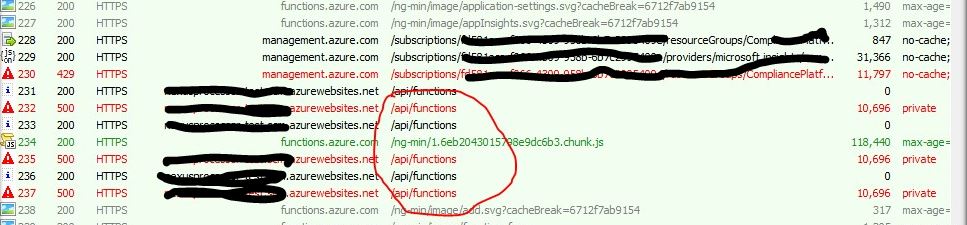
Once you have network trace then you can open it through Fiddler which will definitely give some information about some of the API failure.

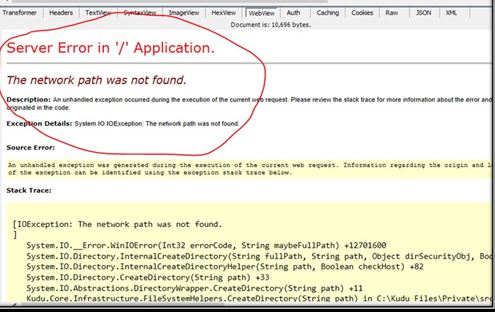
In my case, I observed a lot of API failure for the /api/functions api


While investigating this API failure I observed lot of messages related to Network,


As the message says something about Network I quickly verified  the network setting but I was getting this issue in other networks also that means this issue is not pertaining to the network.


I then checked  Storage Account for this function.


I further checked and confirmed about unavailability of storage account.  

Somehow my storage account was deleted by someone which was causing that issue. I created a new function app and was able to add a new function successfully.

So whenever you face this issue please check the network trace and storage account availability.

Feel free to add/update anything if needed.